A few words,
ready when you need them.
Give your talking points, reminders and steps a place in a card. Groups and items keep everything in your own order.
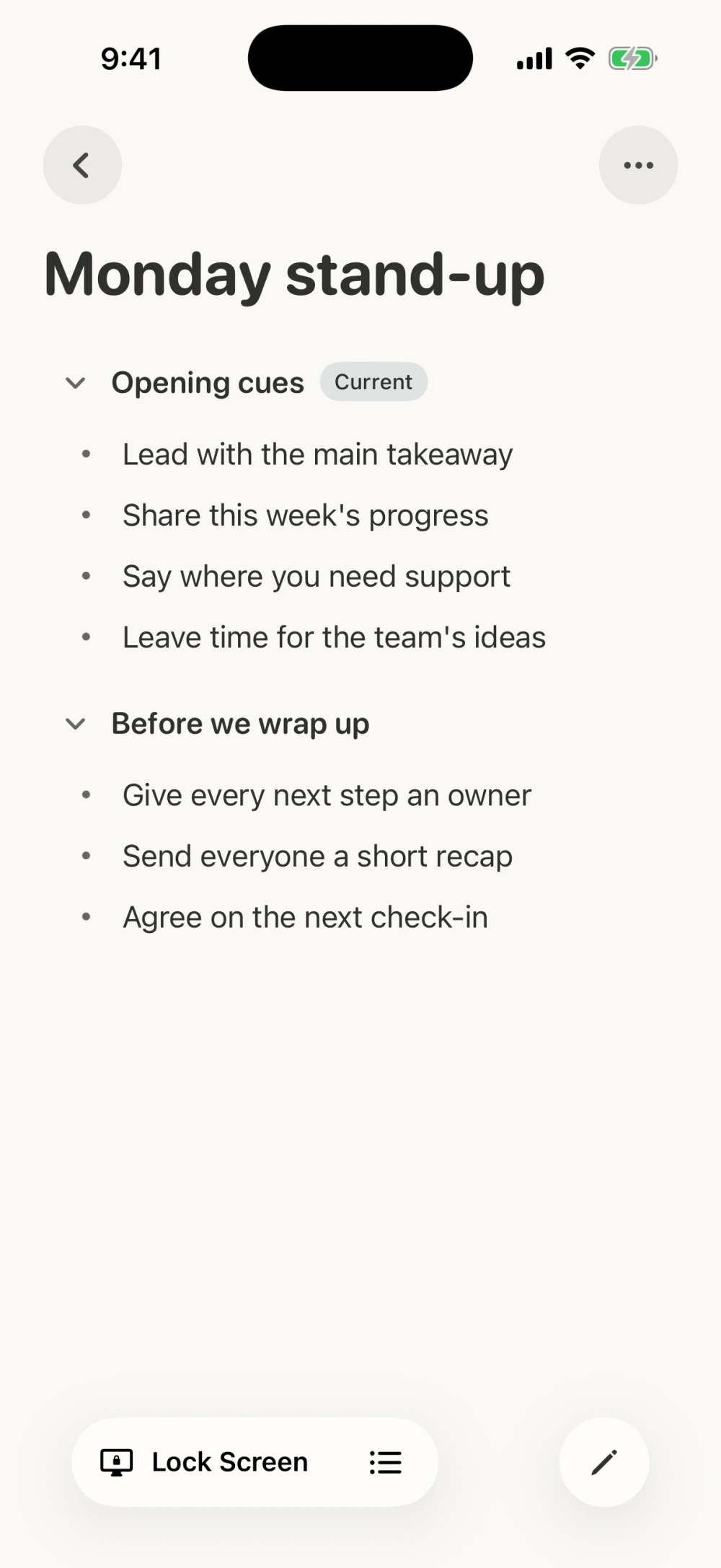
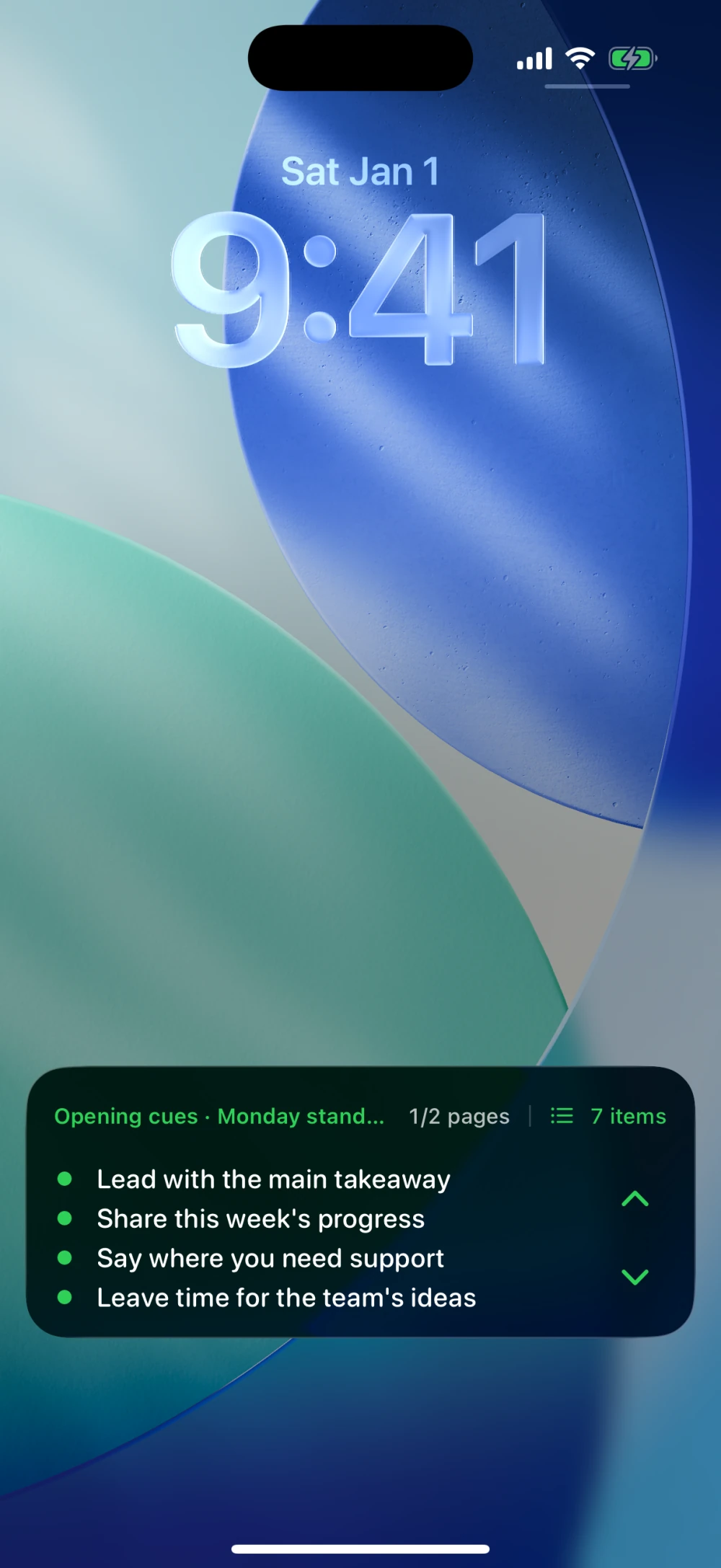
Prepare talking points or a checklist. Start a Live Activity, and glance at your Lock Screen when you need it.
iPhone · iOS 17 or later
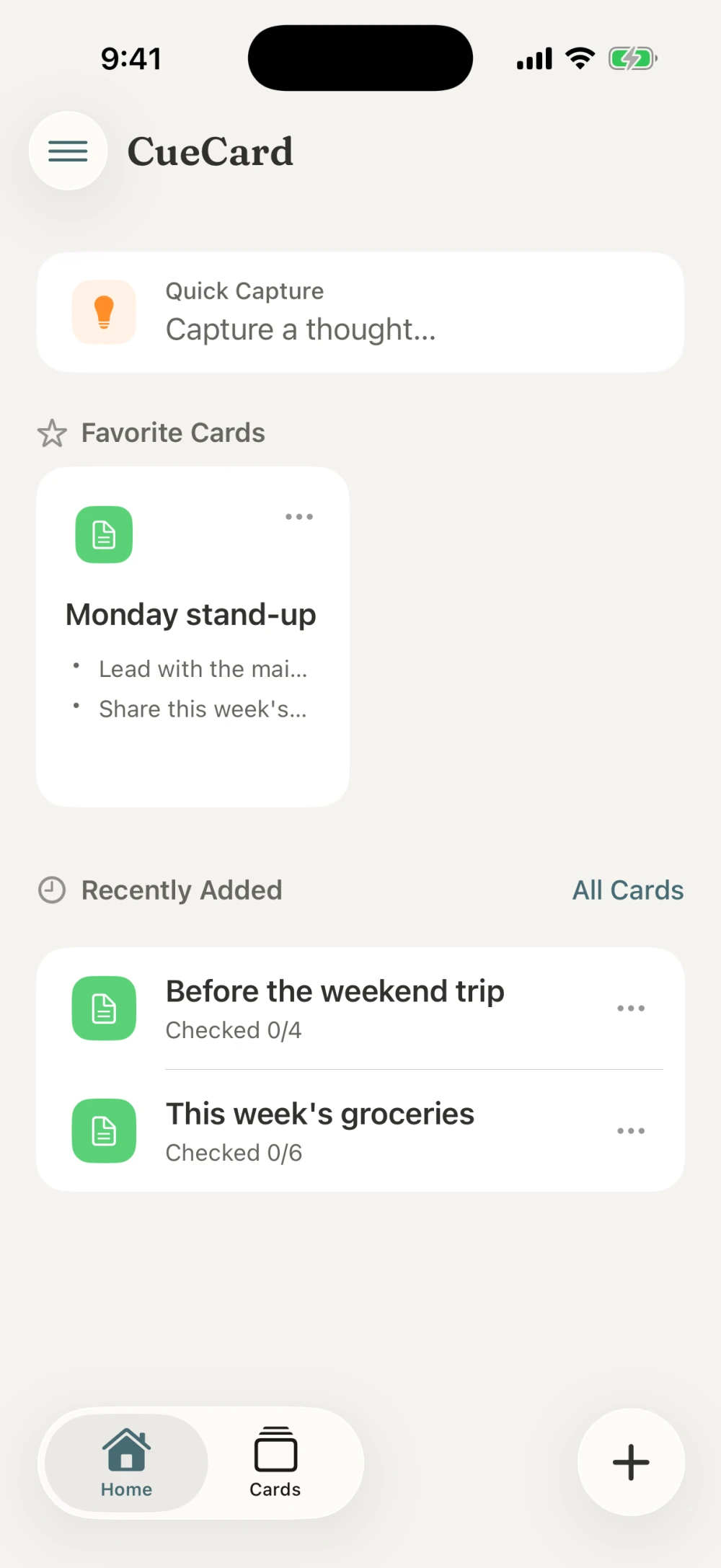
Reading a few prompts is a complete way to use CueCard. Check things off when a checklist helps.
Give your talking points, reminders and steps a place in a card. Groups and items keep everything in your own order.
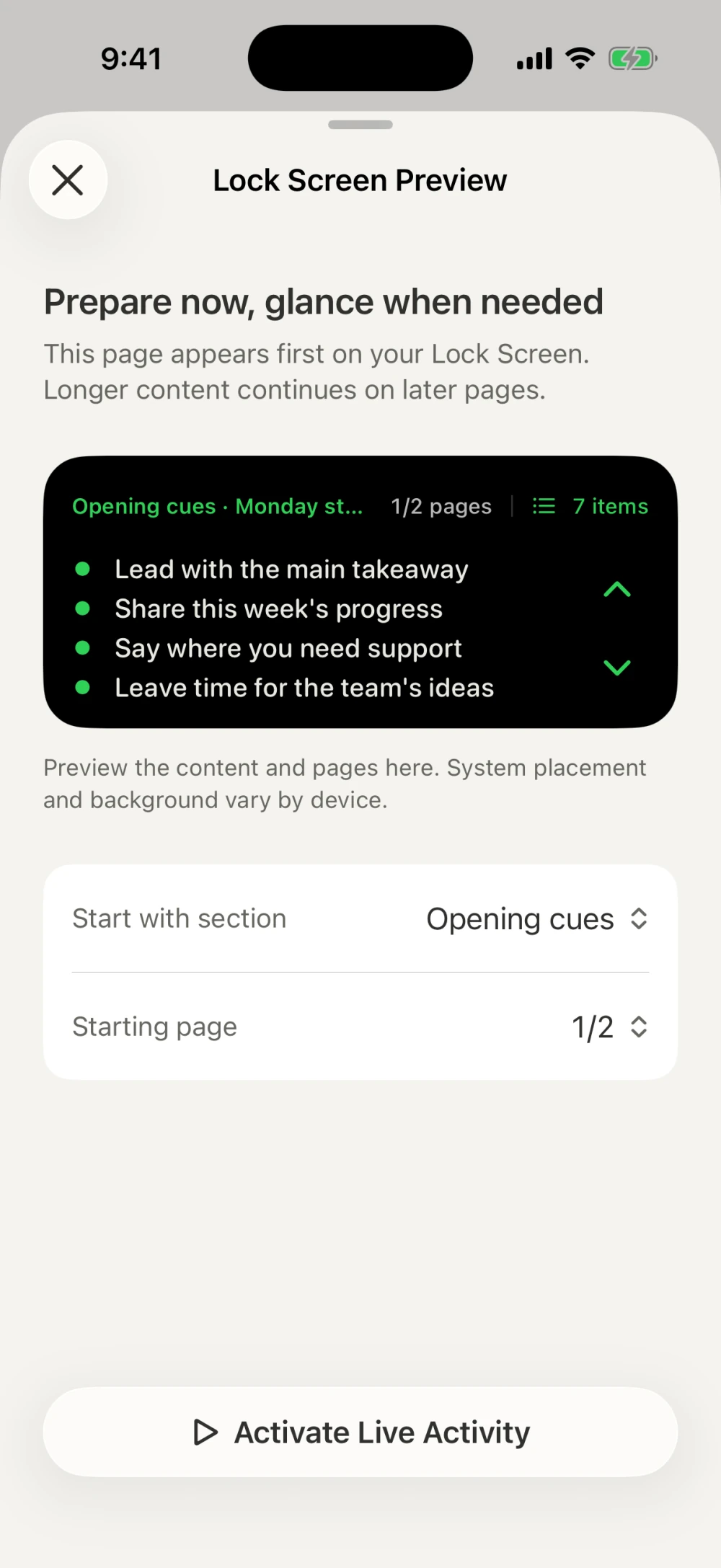
Preview your Lock Screen before you start. Choose a group and starting page. Longer prompts continue across pages, with a layout that adapts to text size.
Check your groceries or what to pack before leaving. Turn on checkboxes when they help, or simply read your cues.
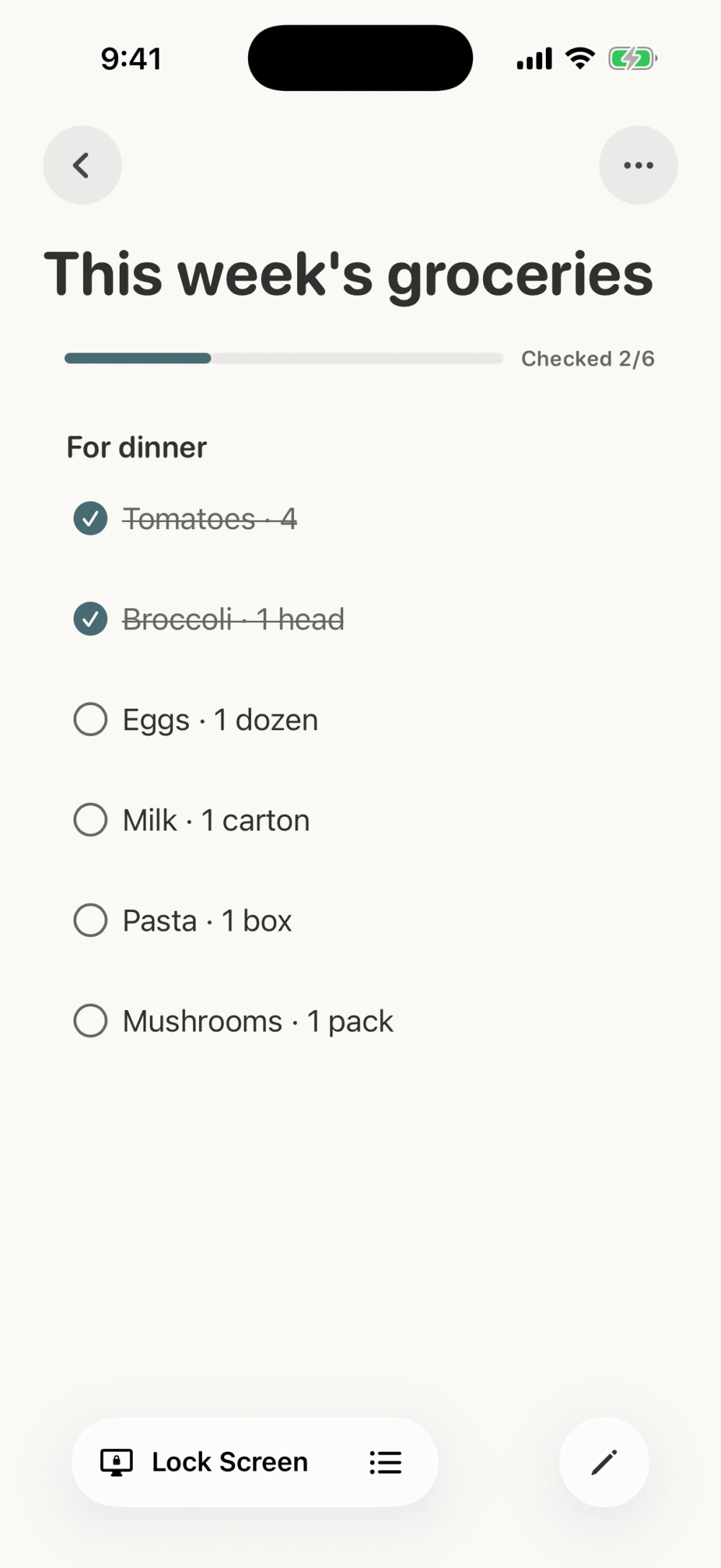
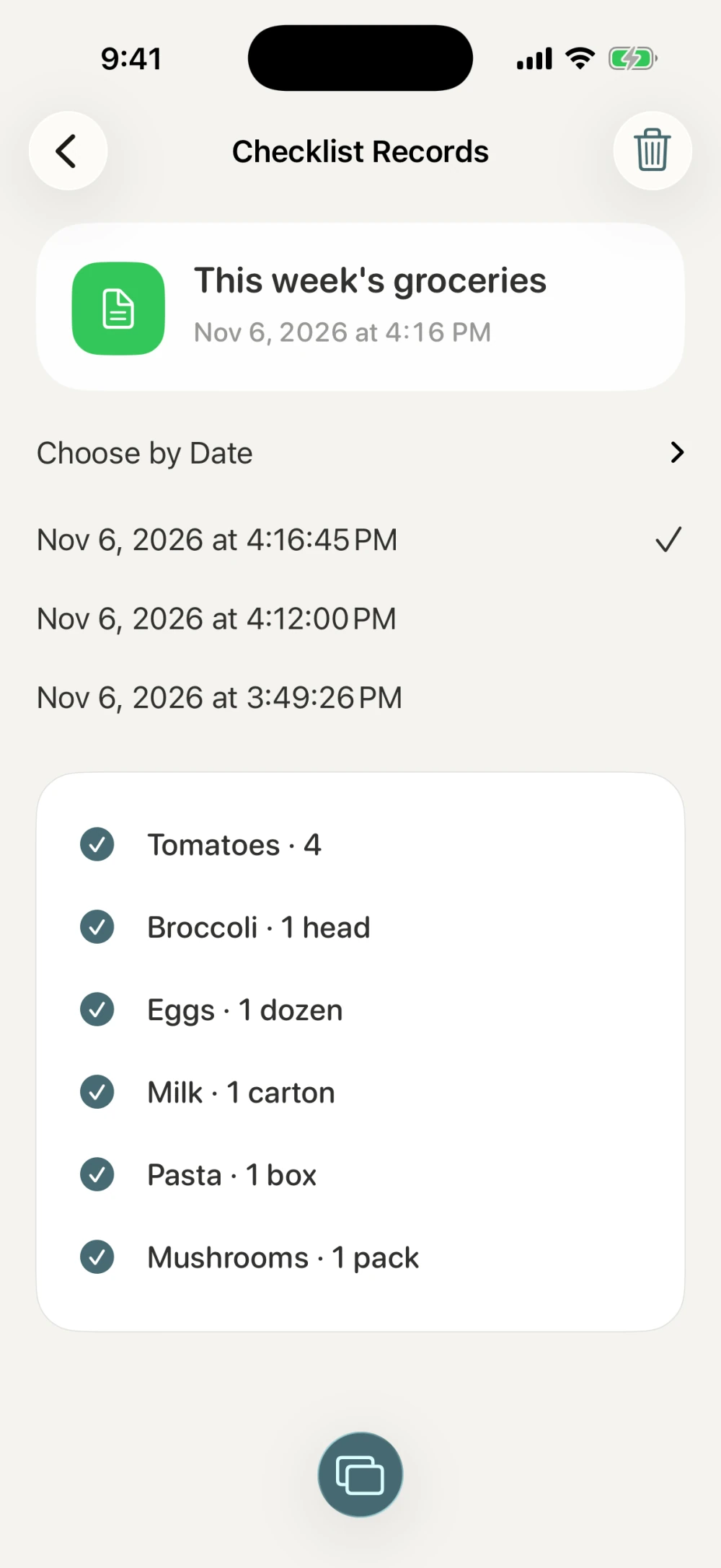
Ending a Live Activity keeps your card and checkmarks. Save a record once a checklist is complete, then reset checkmarks when you need a fresh start.
Lock Screen display requires Live Activities to be enabled. Dynamic Island requires a supported iPhone. View images inside the app.
Add a card to favorites and open it again from Home.
Set a one-time or repeating reminder, then open the notification to activate it.
Export one card or back up all your cards, images and checklist records.
No separate account to create. Local storage, optional sync and backups you can export.
Cards and images are saved on your device, ready when you open the app.
Sync is off by default. Turn it on to sync between devices using the same Apple Account.
Share a card or prepare for a new phone with the export that fits.
Yes. Groups can simply display your notes, without checkboxes. Prepare your talking points or reminders, start a Live Activity, then read and turn pages from your Lock Screen.
Open a card and tap Lock Screen. A preview opens the first time. You can also choose Lock Screen Preview from the reading menu to select a group and starting page before activating the Live Activity. Prepare and activate it before you need it.
No. It ends the Lock Screen display; your card and checkmarks stay saved. Use Reset Checkmarks when you want to start again. Once every item is checked, you can also save a checklist record.
CueCard 2.5.0 is for iPhone with iOS 17 or later. Lock Screen display requires Live Activities to be allowed and depends on the system state. Dynamic Island is available on supported models.

Start with a few talking points or a checklist for heading out.
Get CueCardiPhone · iOS 17 or later